
- Control Panel à Network and Sharing Center à Setup a new connection or Network à Connect to a Work Place
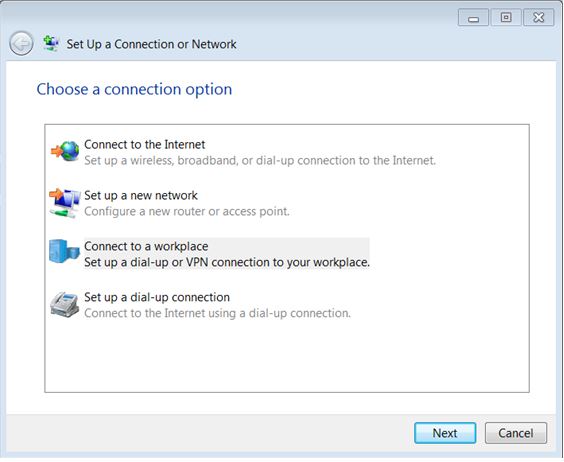
- Create a new connection à click next à Use my Internet connection (VPN)
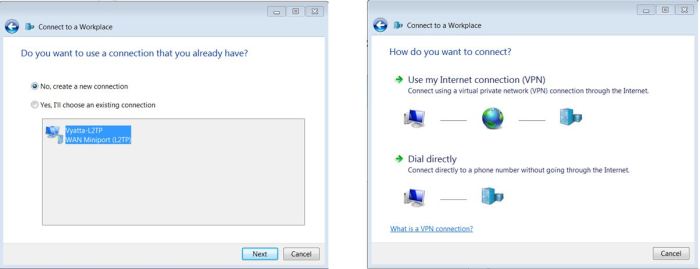
- Type the IP address or domain name of the VPN server and select a name for VPN Interface.
Select the checkboxes as shown in the figure. Click Next. Type in the username and password given to you by network administrator. Make sure the option “Remember this password” is selected. Click on Create.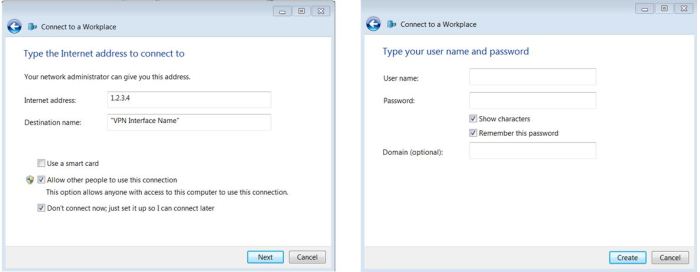
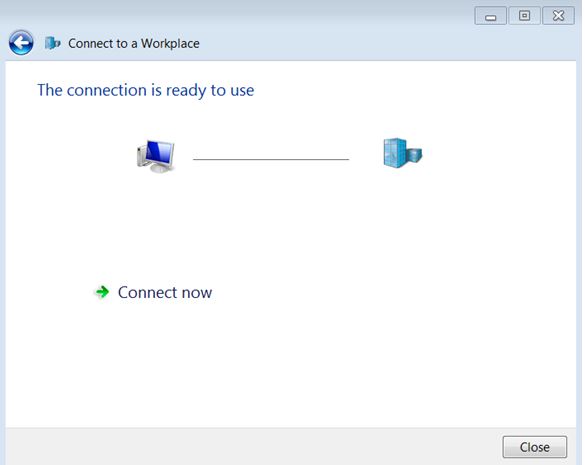
- Click on close. Go back to Network and Sharing Center and click on Change adapter settings.
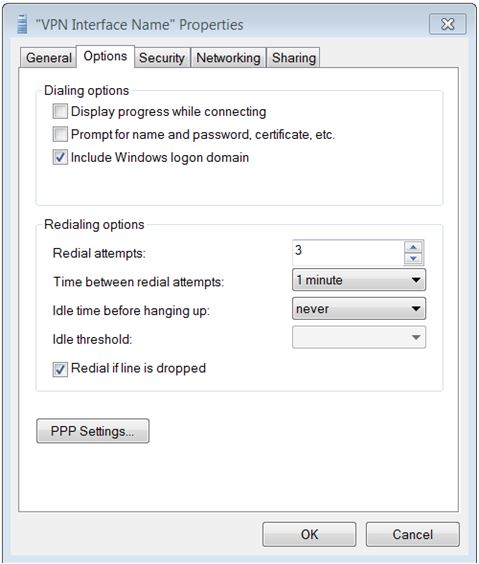
- Right click on the interface that was just created and select properties. Select the options in the windows that opens. Uncheck the boxes for “Display progress while connecting” and “prompt for name and password, etc”.
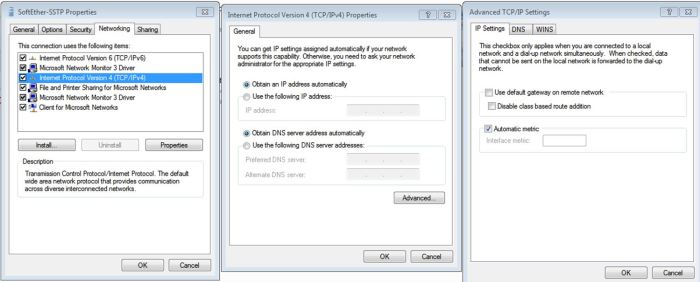
- Configure split tunneling by disabling default gateway option on the VPN interface. Select the “Networking” tab. Select “Internet Protocol Version 4” and click on “Properties”. Click on “Advanced” in the new window. Deselect the “Use default gateway on remote network” option. Click OK on all open windows.
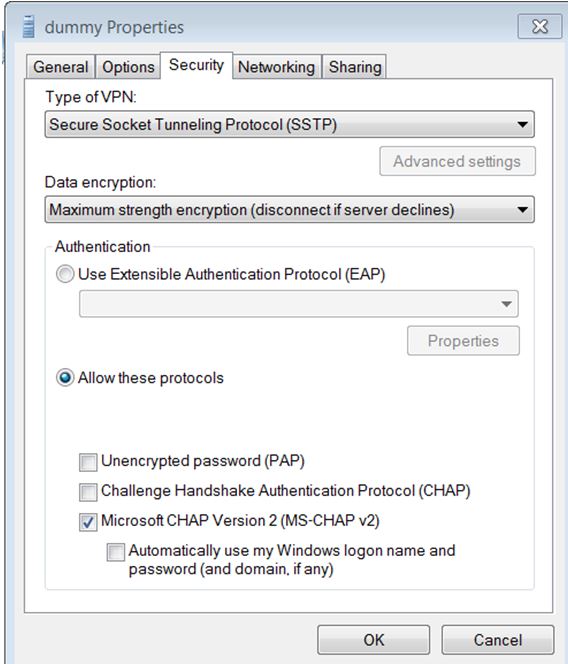
- Select the security tab. In order to connect using SSTP select “Secure Socket Tunneling Protocol (SSTP)” as the type of VPN and “Maximum strength encryption” for Data encryption. Only select “Microsoft CHSP Version 2” and uncheck other boxes.
 Peter's Tech Blog