
Generation 11 servers come with iDRAC6 (Dell R210, 410, 510, 610 etc.)
- Run the hardware inventory if a new HW has been added to the server.
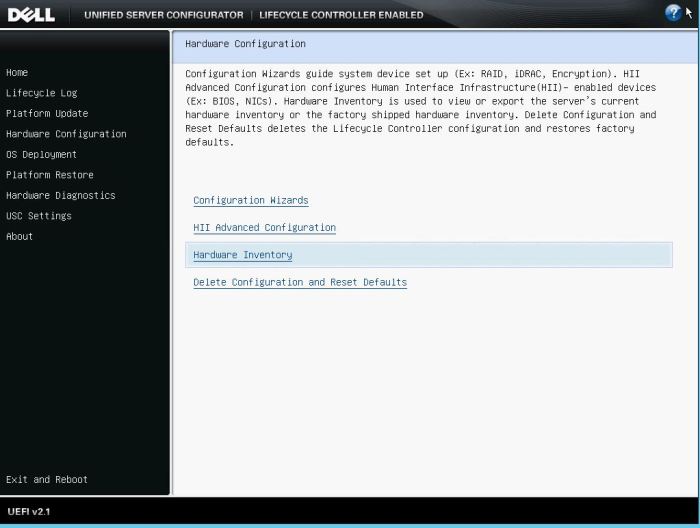
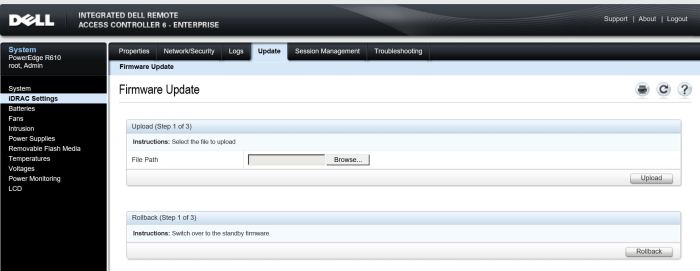
- Update the Drac from its web interface. Download the EXE upgrade file available for Windows OS.
Then extract it (using 7-zip for example) and the image file is located at the folder named “Payload” and it is named “firmimg.d6” or similar.

Upload the image file through web interface and update the Drac.
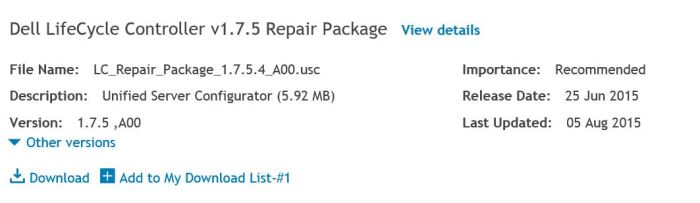
- Update the lifecycle controller. Download the image file which has extension “.usc” and upload it in the same place that we used for Drac update.
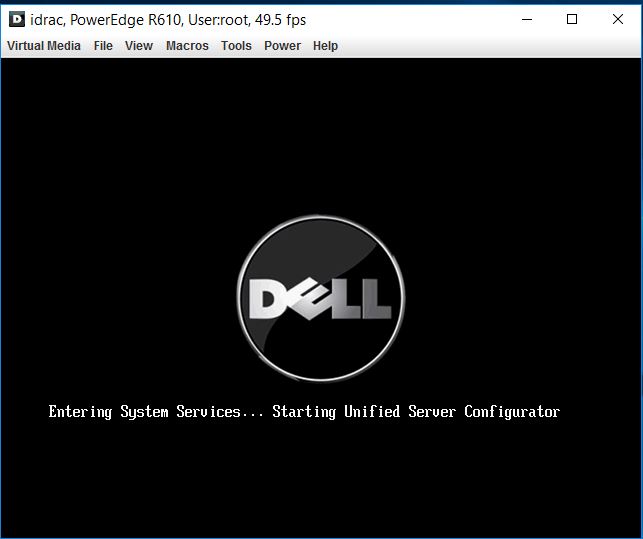
- Reboot the server and enter “System Services” by pressing F10. It will enter Lifecycle Controller.
- Select “USC settings”
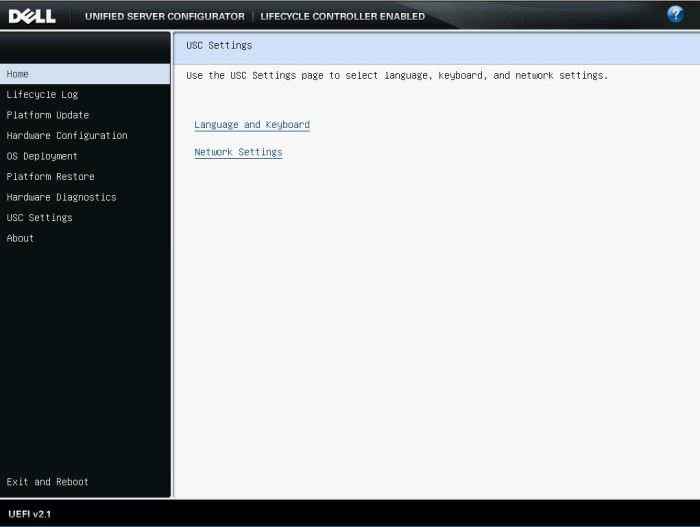
- Select “Network Settings”
The first embedded Nic is selected by default and this must NOT be changed.
The process doesn’t work with other Nics even though they are available in the drop-down menu. We can use DHCP or Static IP for Internet connection.
(DHCP if the server in office and Static IP if it is in data center)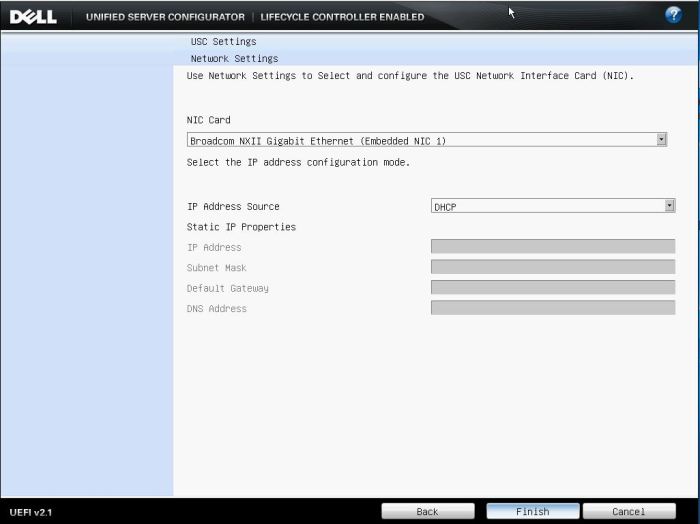
- Select “Platform Update” and then click on “Launch Platform Update”
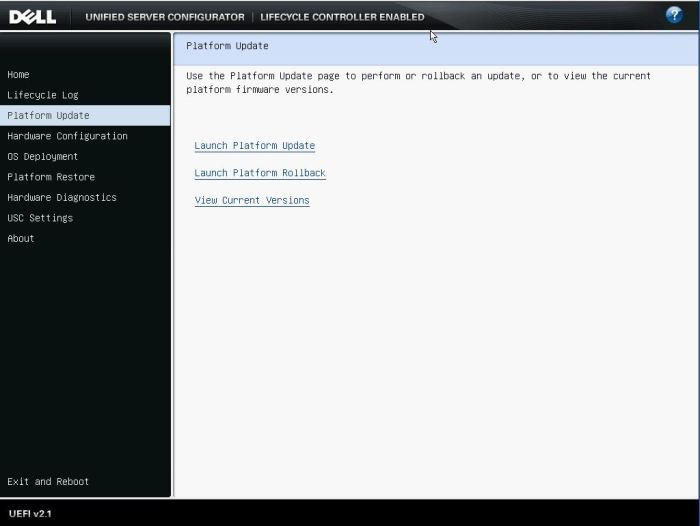
- Select FTP server (It should be selected by default). Click Next.

- Leave all the fields unchanged (The address field should be ftp.dell.com by default). Click Next.

- It will connect to Dell’s repository and the table shows current and latest firmware versions.
Select the items that you want to update and click “Apply”
 Peter's Tech Blog