
Generation 12 servers come with iDRAC7 (Dell R220, 320, 620, 720 etc.)
For servers with iDrac7, Lifecycle is integrated with iDrac.
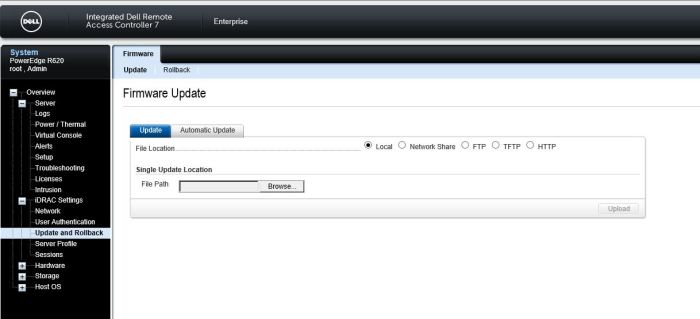
Find “iDRAC with Lifecycle controller” in corresponding Dell support page and extract the image and update it through iDrac web interface.
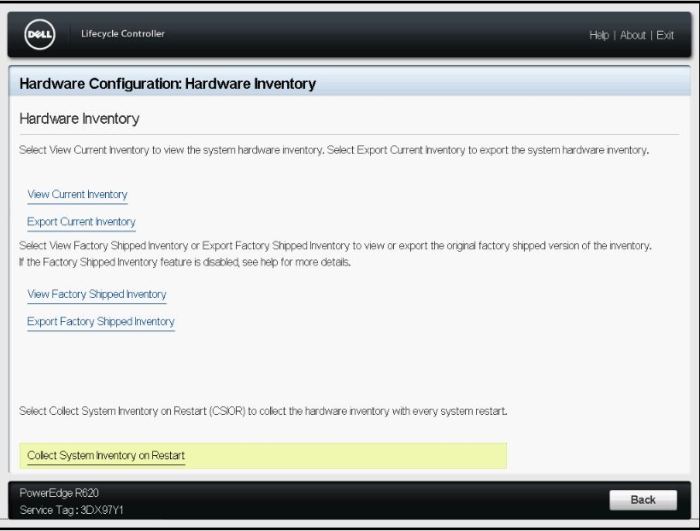
- Verify that Collect System Inventory on Restart (CSIOR) is enabled by default, so there is no need to re-run it.
- Download the EXE file available for “iDRAC with Lifecycle controller” and then extract it (using 7-zip for example)
The image file is located in the folder named “payload” and is called “firmimg.d7”.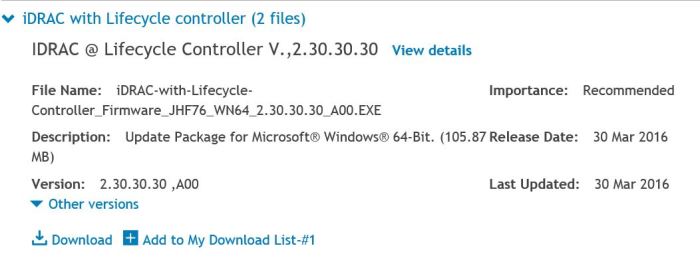
- Update the Drac/Lifecycle Controller using this image file.
- Reboot the server and enter Lifecycle Controller by pressing F10.
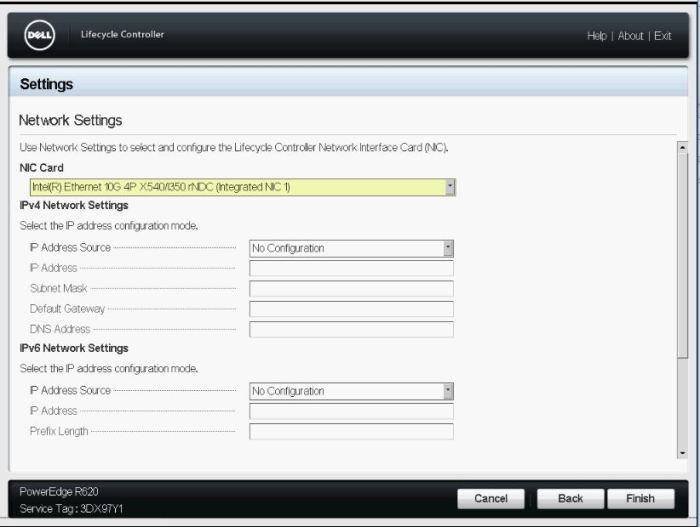
- Click on “Settings” and then click on “Network Settings”
Select proper Nic and use DHCP or Static IP.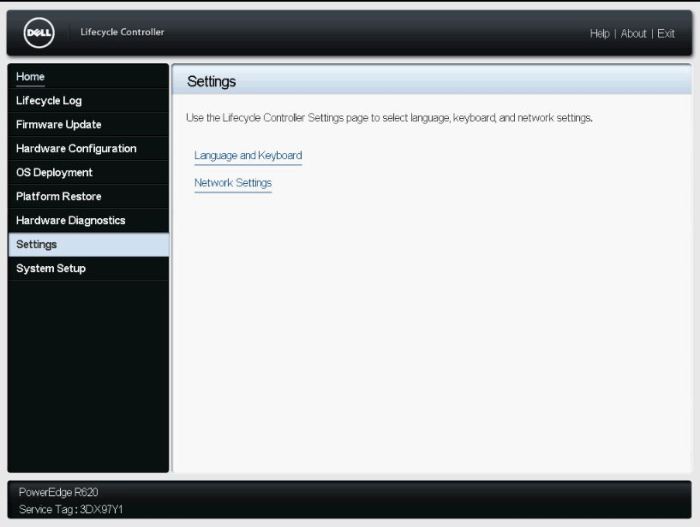
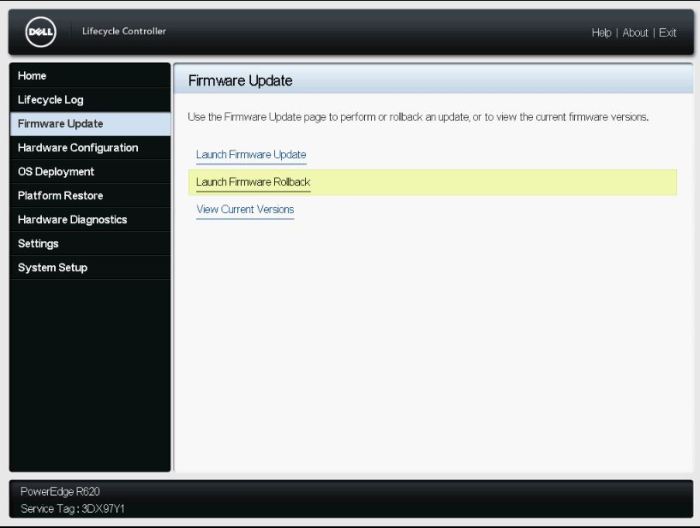
- Then Click on “Firmware Update” and select “Launch Firmware Update”.
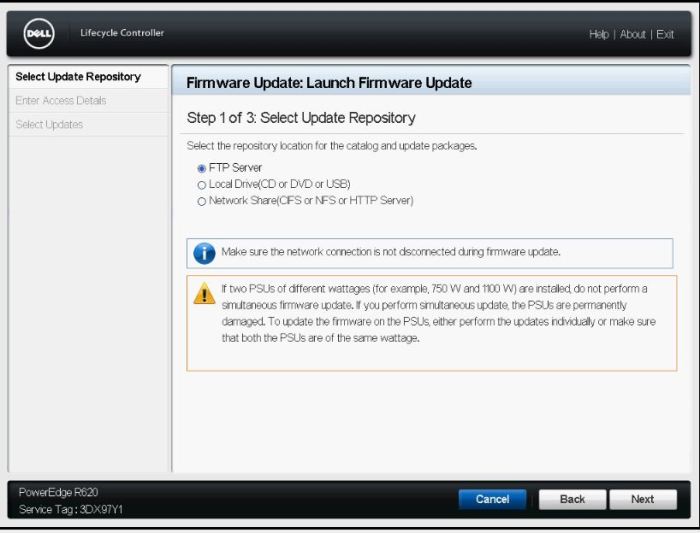
- For the rest of the process leave all value as their default and click Next and apply the updates.
 Peter's Tech Blog