
Teredo interface in Windows is used to access IPv6 network by hosts that support both IPv4 and IPv6 but their internet access only supports IPv4 and they are behind NAT and firewalls.
First we check if the Teredo interface has been added to the server. Using the command ipconfig/all we should have:

We can further check the Windows device manager

If the Teredo interface is not added to the server we can add using the following procedure:
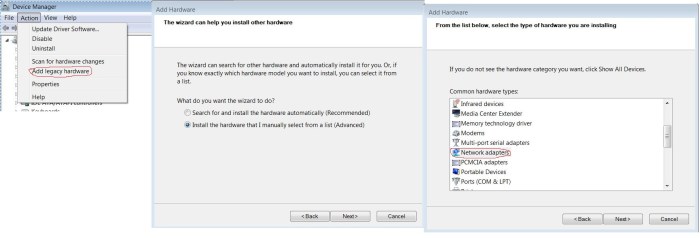
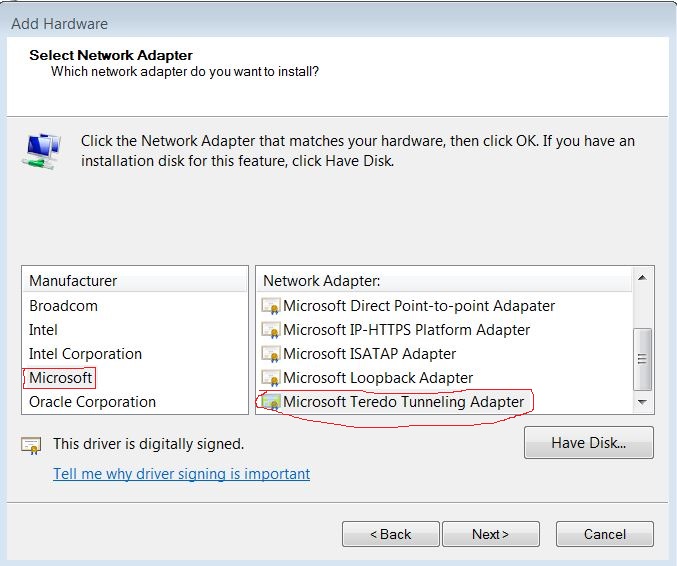
The configuration can be divided to three parts:
- Steps need to be done once and for all.
- Steps that has to be done every time computer boots.
- Verification and troubleshooting.
Steps need to be done once and for all.
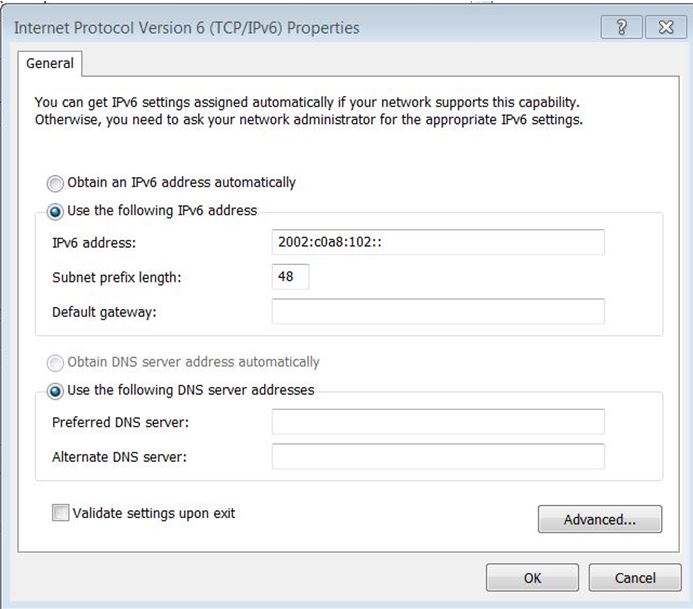
- Assign a dummy IPv6 IP to your Internet access adapter (LAN or Wi-Fi). For example use this IP 2002:c0a8:102::/48Do not configure a gateway or DNS for IPv6 on this interface.
Control Panel –> Network and Sharing Center –> Change adapter settings
Right click on the proper adapter and then select the properties of “Internet Protocol Version 6 (TCP/IPv6)” in the list. Put 2002:c0a8:102:: in IP field and 48 as prefix length.
- In order for the default gateway to persist we have to make the following change in Windows registry:(Windows 7 Home Premium)
- Open regedit from the Start Menu by typing it into the search bar or “Run” bar
- Navigate to HKEY_LOCAL_MACHINE\Software\Policies\Microsoft\Windows
- Right-click the “Windows” Key and choose New -> Key, create a “TCPIP” Key (observe case)
- Right-click the “TCPIP” Key and choose New -> Key, create a “v6Transition” Key (observe case)
- Right-click the “v6Transition” Key and choose New -> String Value, create an entry called “Teredo_DefaultQualified” with a value of “Enabled” (observe case, note the underscore)
B. Steps that has to be done every time computer boots
These steps can be converted to a batch file and put in the start-up folder so that they run every time computer boots without user interference.
- Make sure that Teredo interface is present using “ipconfig” in the Windows command line. Otherwise install it through Device Manager. The number after % sign in the Link local IPv6 address (above picture) is the interface ID of Teredo. Write down this number which will be used in step 5. In this case the interface ID is 14.

- Run the following commands as administrator in Windows command line:C:\Users\> netsh interface teredo set state enterpriseclient servername=teredo.remlab.net
- Make the Teredo interface default route for IPv6. We use the interface ID that was obtained in step 3 here.Run the following command in the Windows command line:
C:\Users\> netsh interface ipv6 add route ::/0 interface=<Interface ID> store=persistent
If you received this message: “The object already exists.” it can be ignored
C. Verification and troubleshooting
- Checking that Teredo interface is default gateway for IPv6. The following command show the list of all IPv6 routes.C:\Users\> route print -6
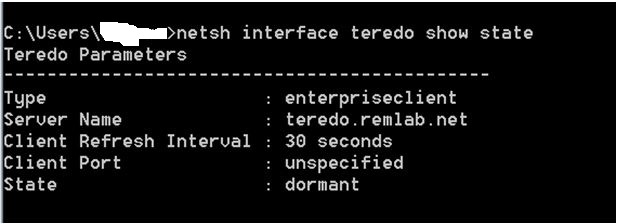
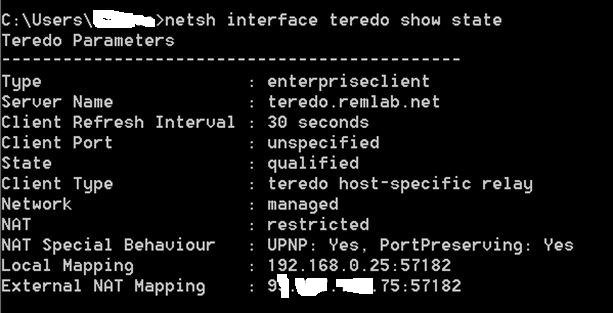
- Check the status of Teredo interface using the following command at Windows command line:C:\Users\>netsh interface teredo show state
Either of the below results are acceptable:

- Wait 1 minute and then test it by pinging IPv6 addressesC:\Users\> ping ipv6.google.com
- If the pings are successful check the status of Teredo interface (step 2) and the result should be like this:
 Peter's Tech Blog